Create RDS database instance
Creating a DB Instance on AWS
To create a DB Instance on AWS, you can use the AWS Management Console with the option of Easy create either enabled or disabled. When Easy create is enabled, you only need to specify the DB engine type, DB Instance size, and DB Instance identifier. Easy create uses default settings for other configuration options. When Easy create is disabled, you need to specify more configuration options when creating a database, including options for availability, security, backups, and maintenance.
Note: In the procedure below, the Full configuration is enabled, and Easy create is not. This procedure uses MySQL as an example.
To create a DB Instance:
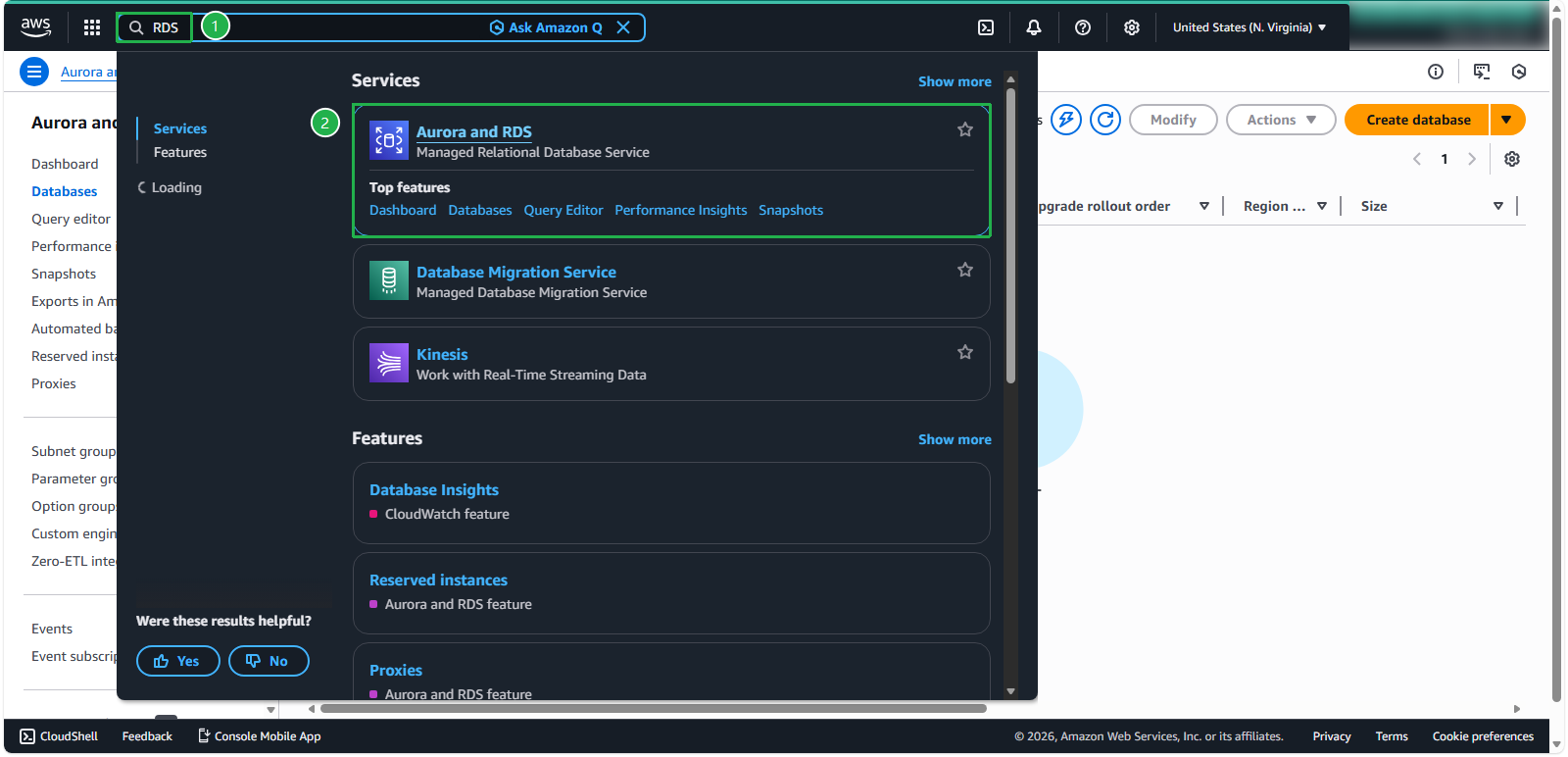
In the search bar, find and select RDS to open the Amazon RDS console
In the upper right corner of the Amazon RDS console, select the AWS region where you want to create the DB Instance.
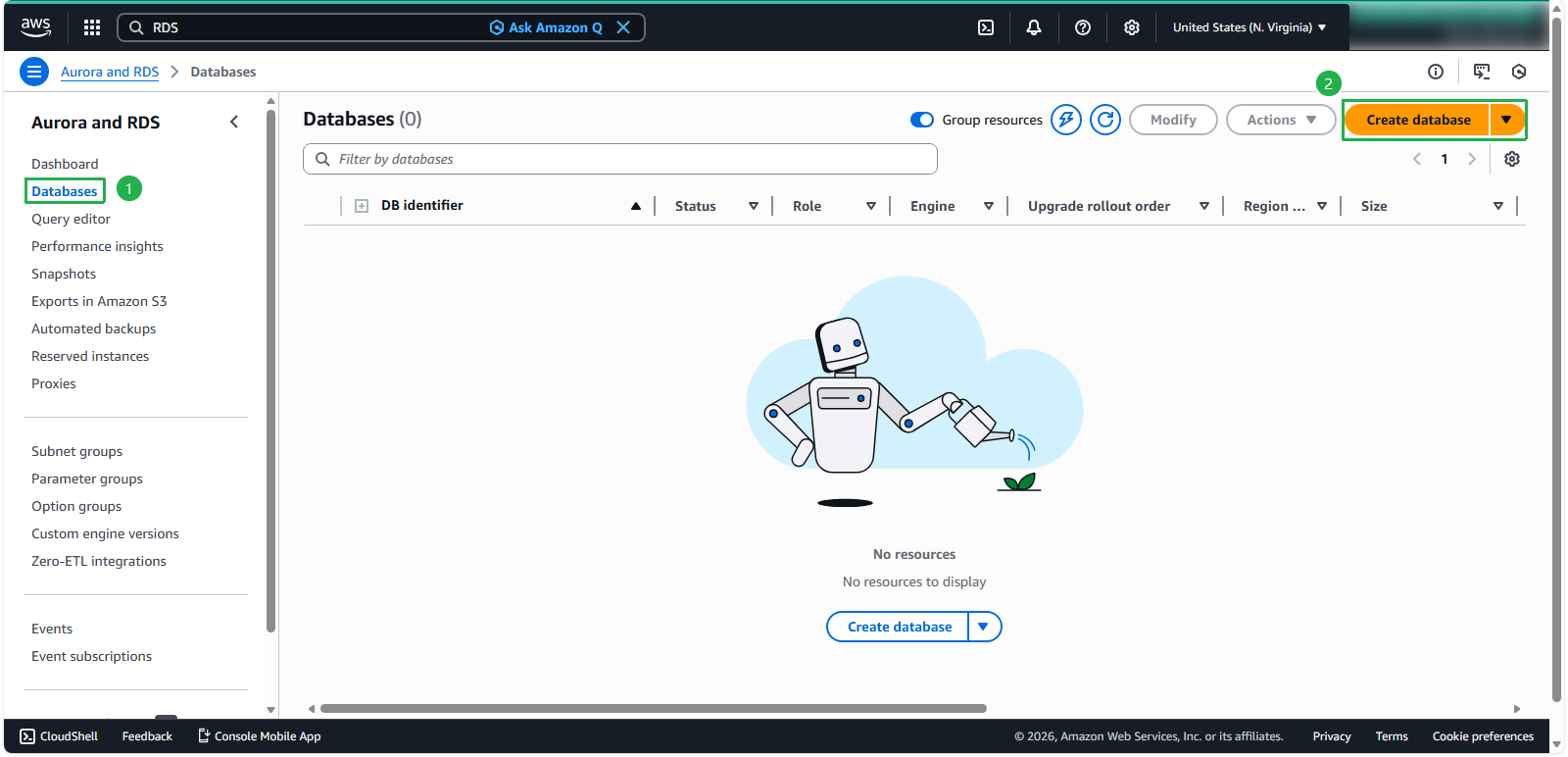
In the navigation pane, choose Databases then Create database
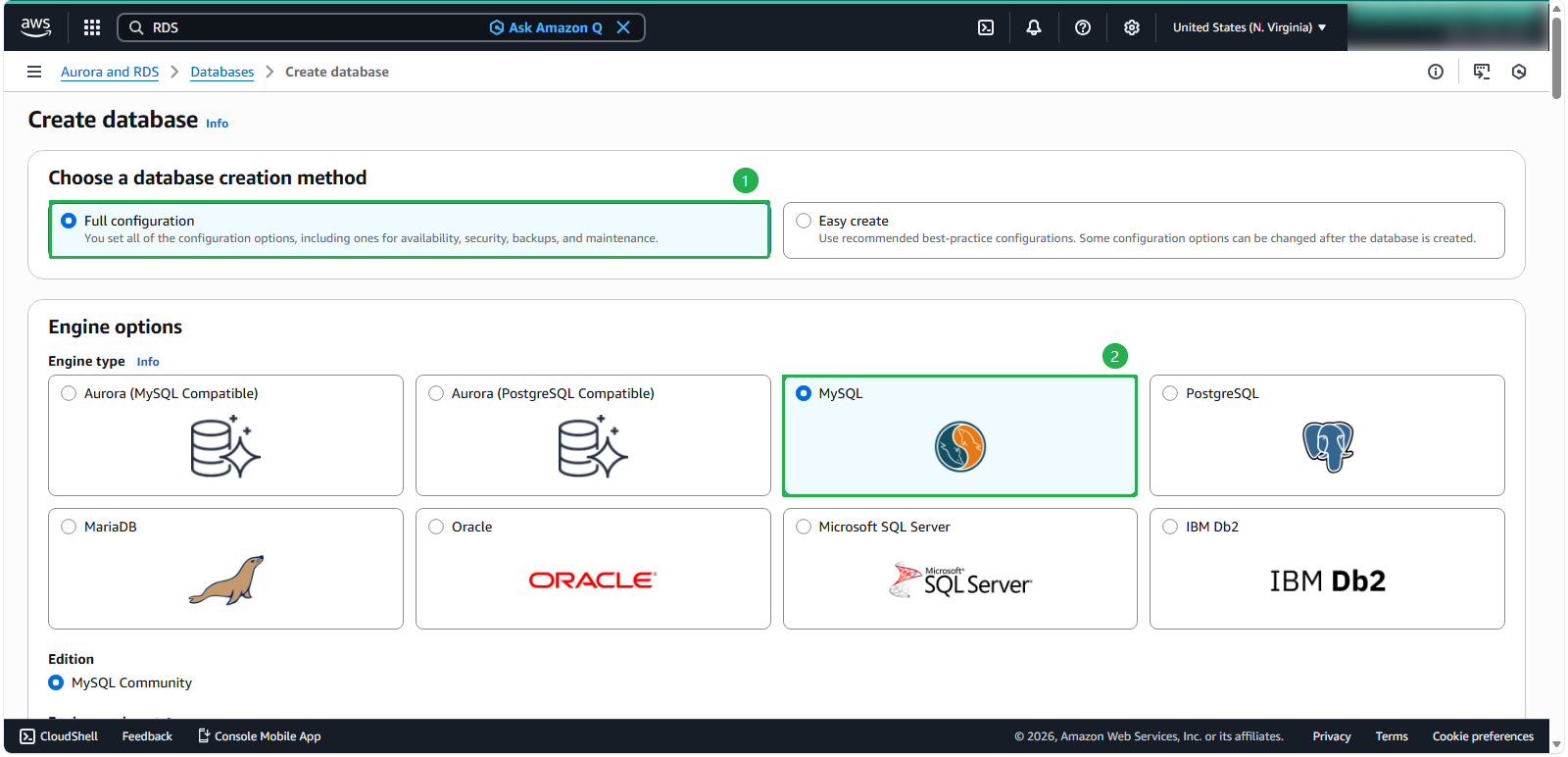
Configure the database creation method: Select Full configuration.
For Engine type, choose MariaDB, Microsoft SQL Server, MySQL, Oracle, or PostgreSQL. In this example, we are using MySQL.
Configure the deployment template:
- Select Production template
- Choose Multi-AZ DB instance deployment (2 instances) for high availability
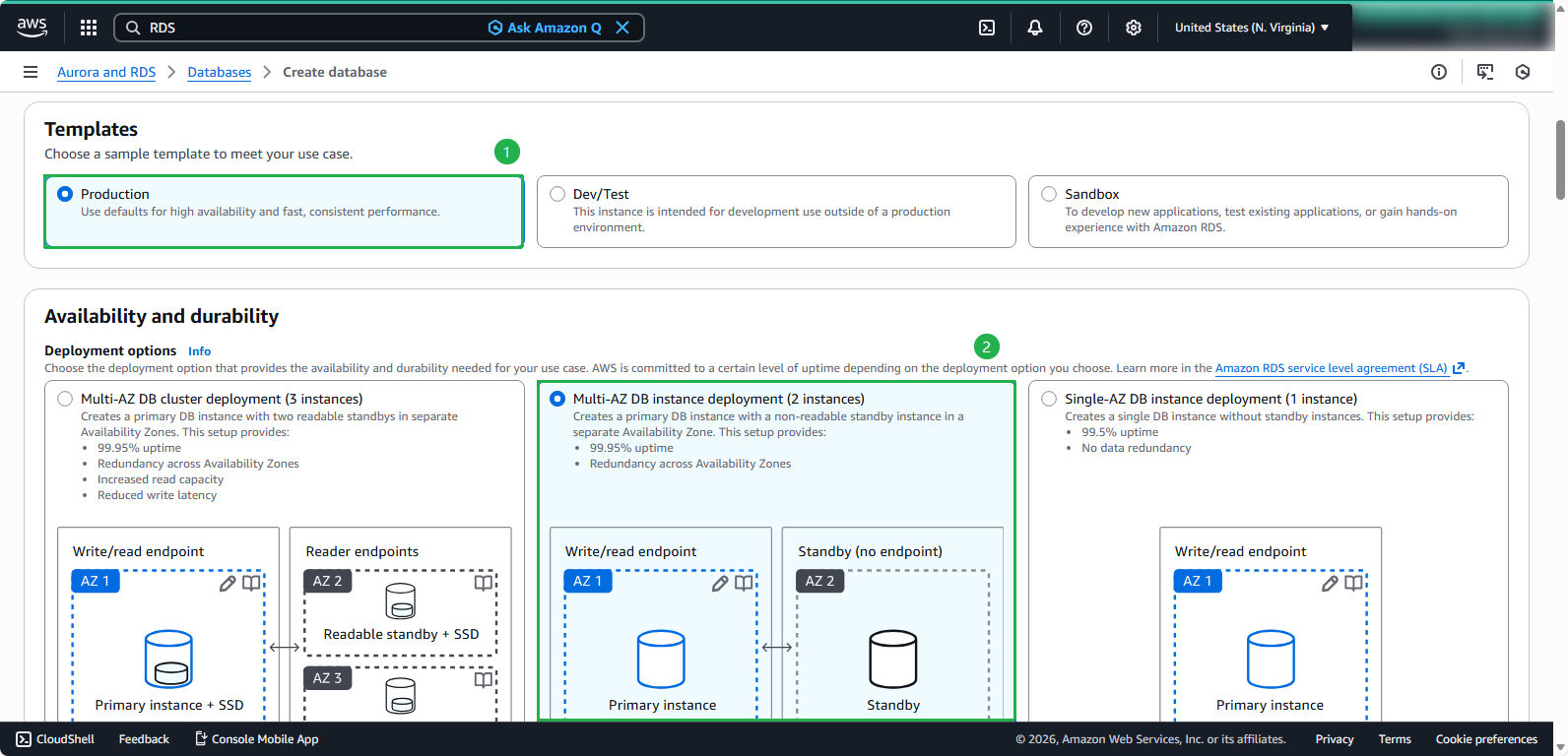 💡 Pro Tip: This option is primarily used for High Availability and Disaster Recovery. It provisions a standby instance in a different Availability Zone (AZ). Data written to the primary instance is synchronously replicated to the standby instance. In the event of an primary instance failure, Amazon RDS automatically fails over to the standby instance, ensuring minimal downtime and no data loss
Configure DB instance details:
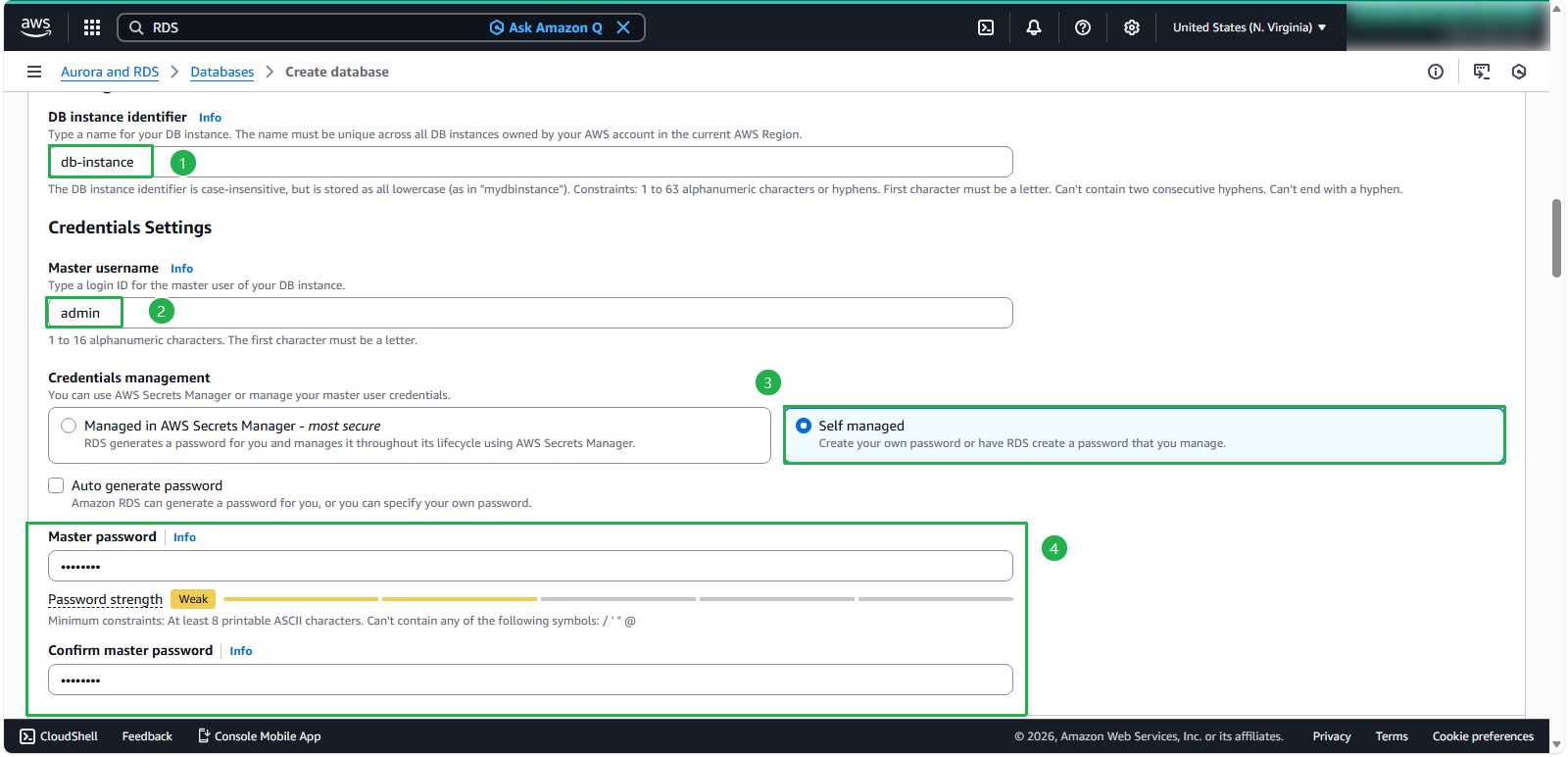
- For DB instance identifier, enter
db-instance - For Master username, enter
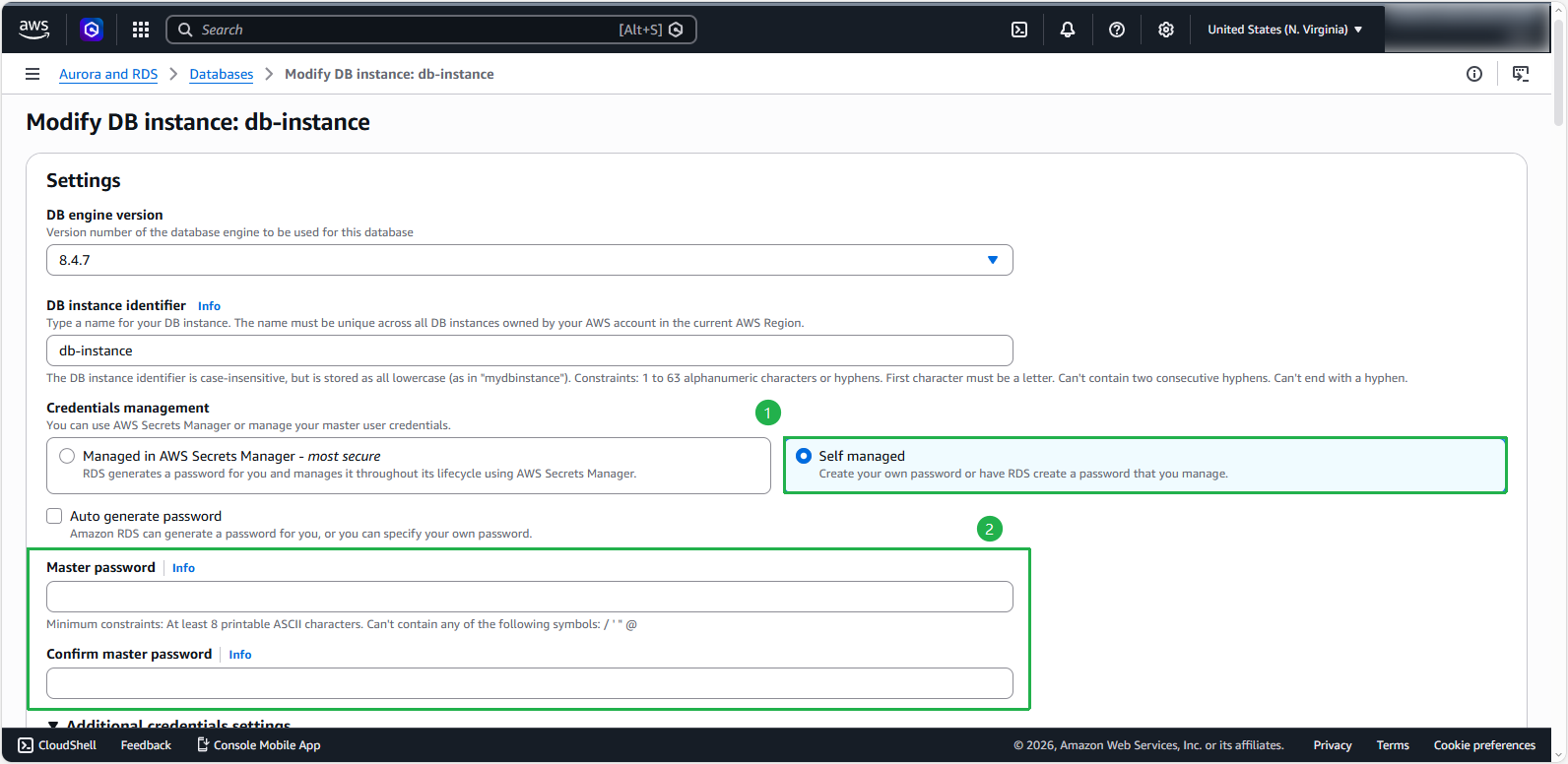
admin - Select Self managed for credential management
- For Master password, enter a strong password
Aa12345# - Confirm the password
- For DB instance identifier, enter
ℹ️ Important: You cannot review the master user password. If you don’t record it, you may need to change it. If you need to change the master user password after the DB Instance is available, you can modify the DB Instance to do this. For more information on modifying a DB Instance, see Modifying an Amazon RDS DB Instance.
Configure instance specifications:
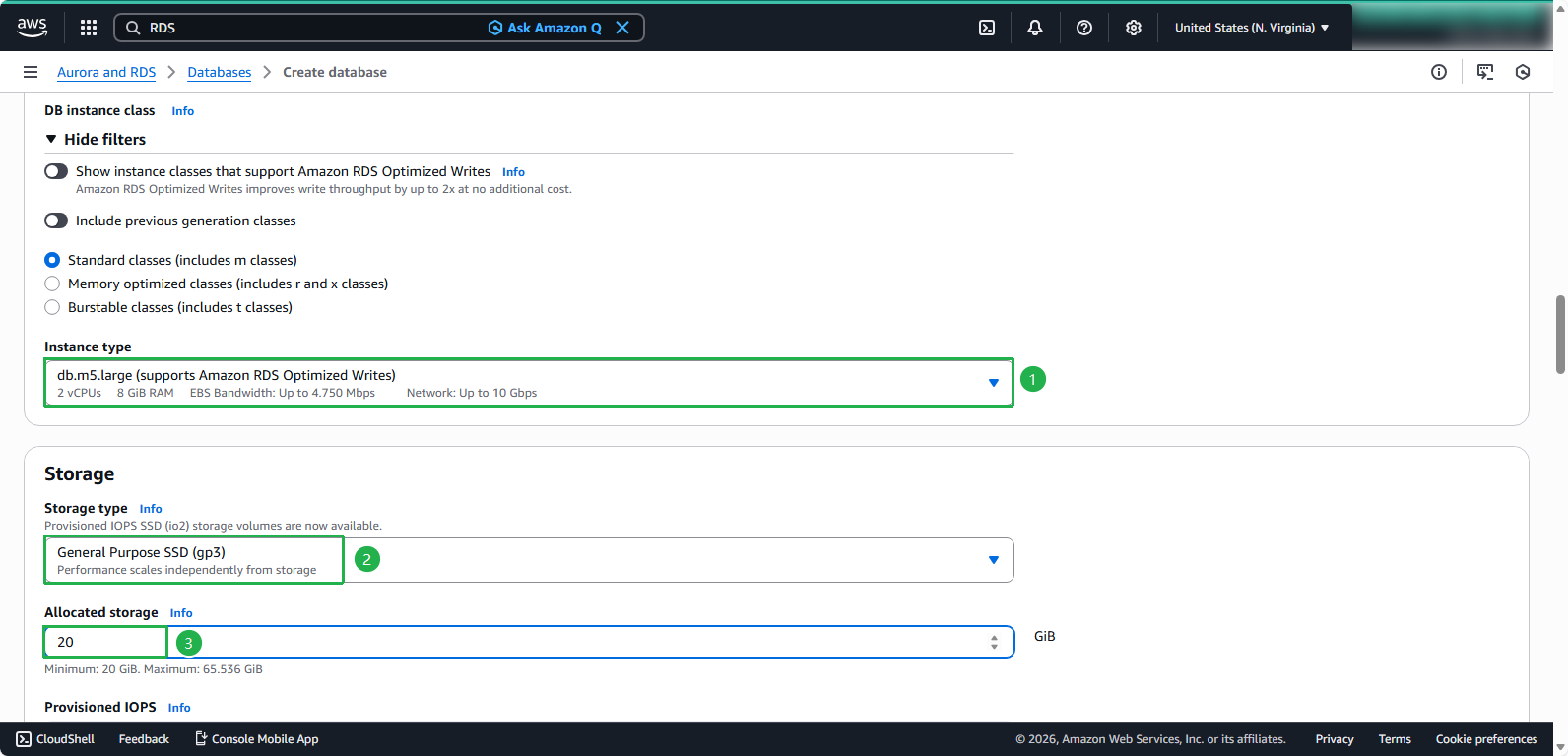
- Select db.m5.large for the instance class
- Choose General Purpose SSD (gp3) for storage type
- Set Allocated storage to 20 GiB
Configure connectivity settings:
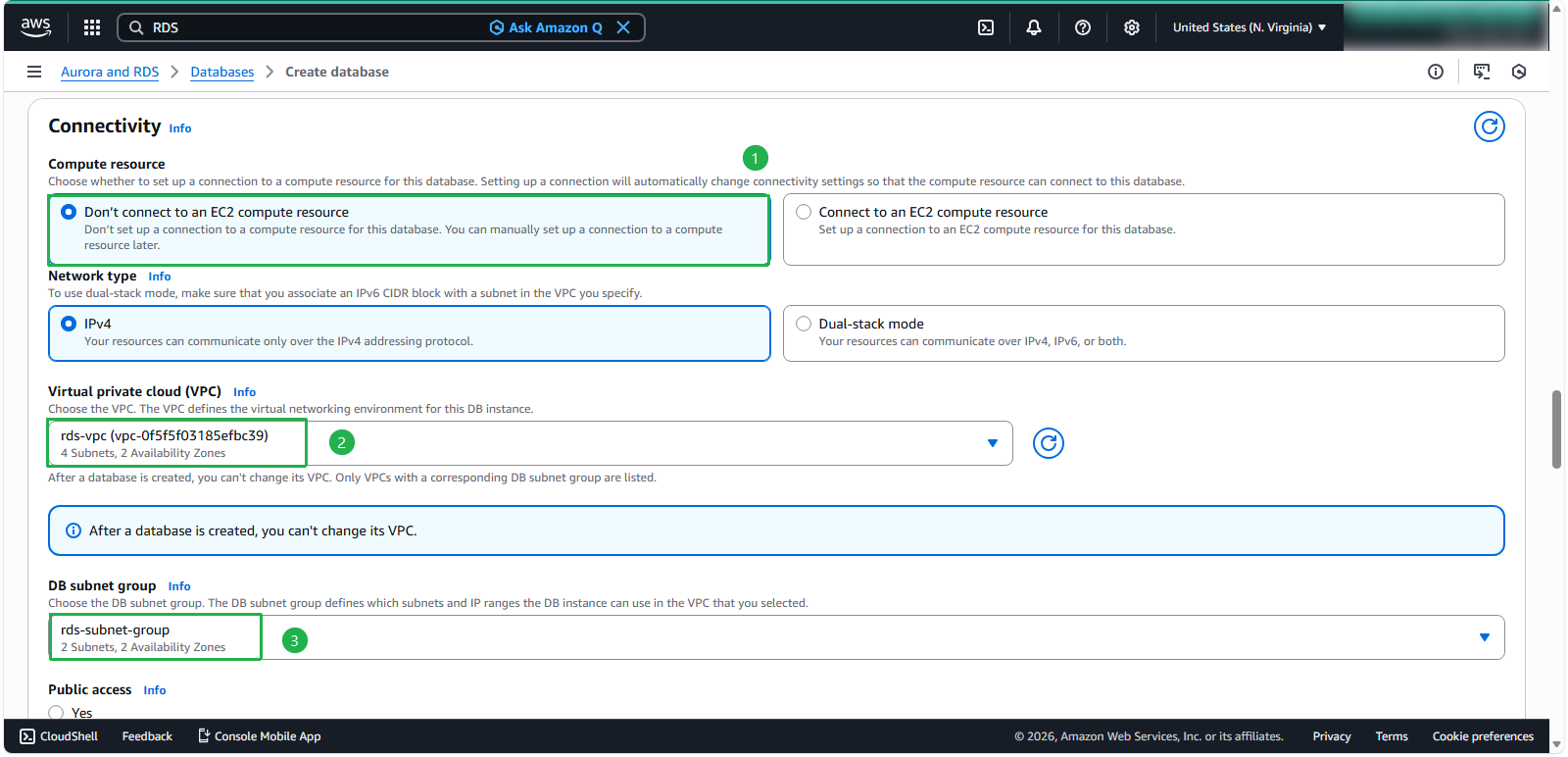
- Select Don’t connect to an EC2 compute resource
- For VPC, select your created VPC
- For Subnet group, choose the subnet group you created earlier
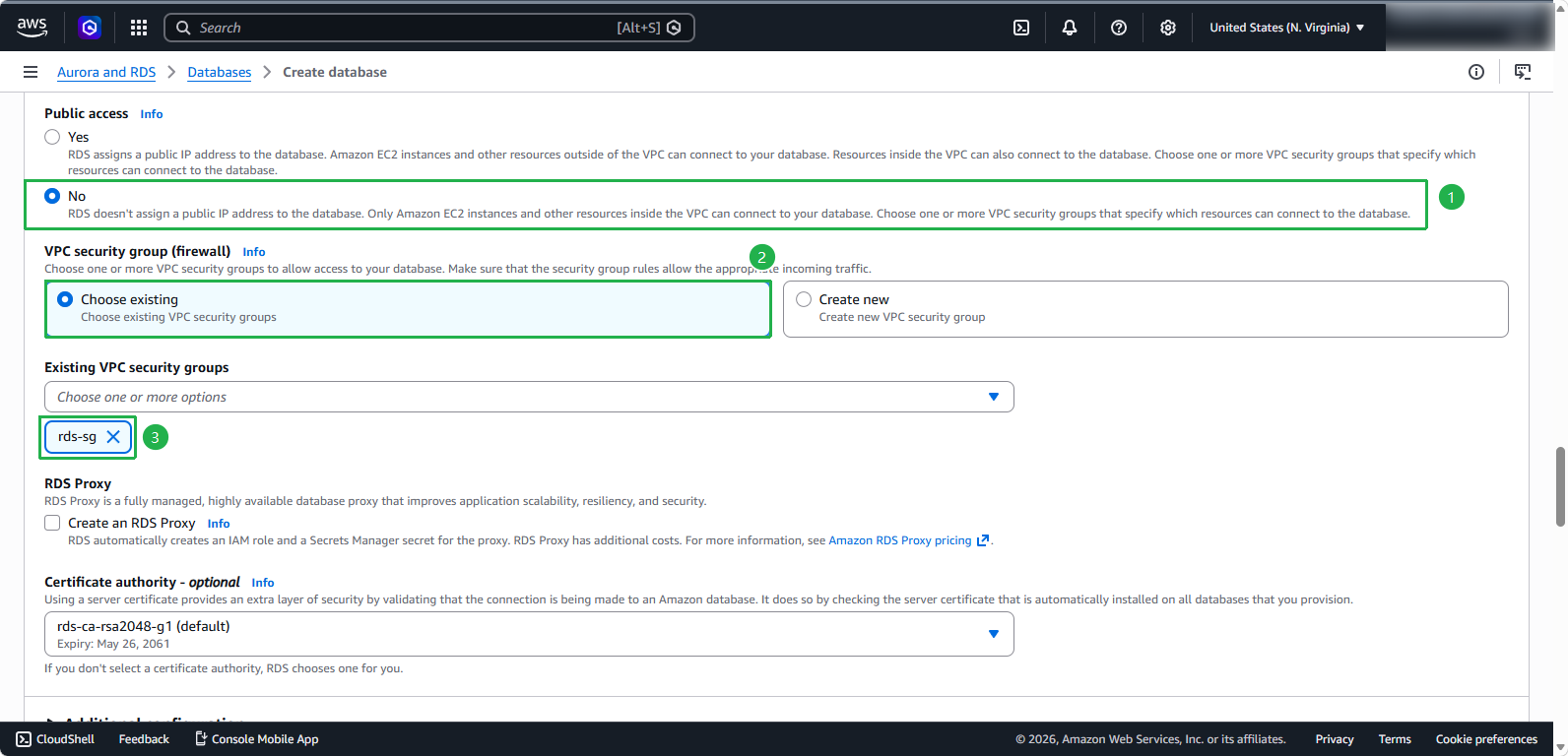
Configure security settings:
- For Public access, select No
- For VPC security group, select Choose existing
- For Security Group, select rds-sg
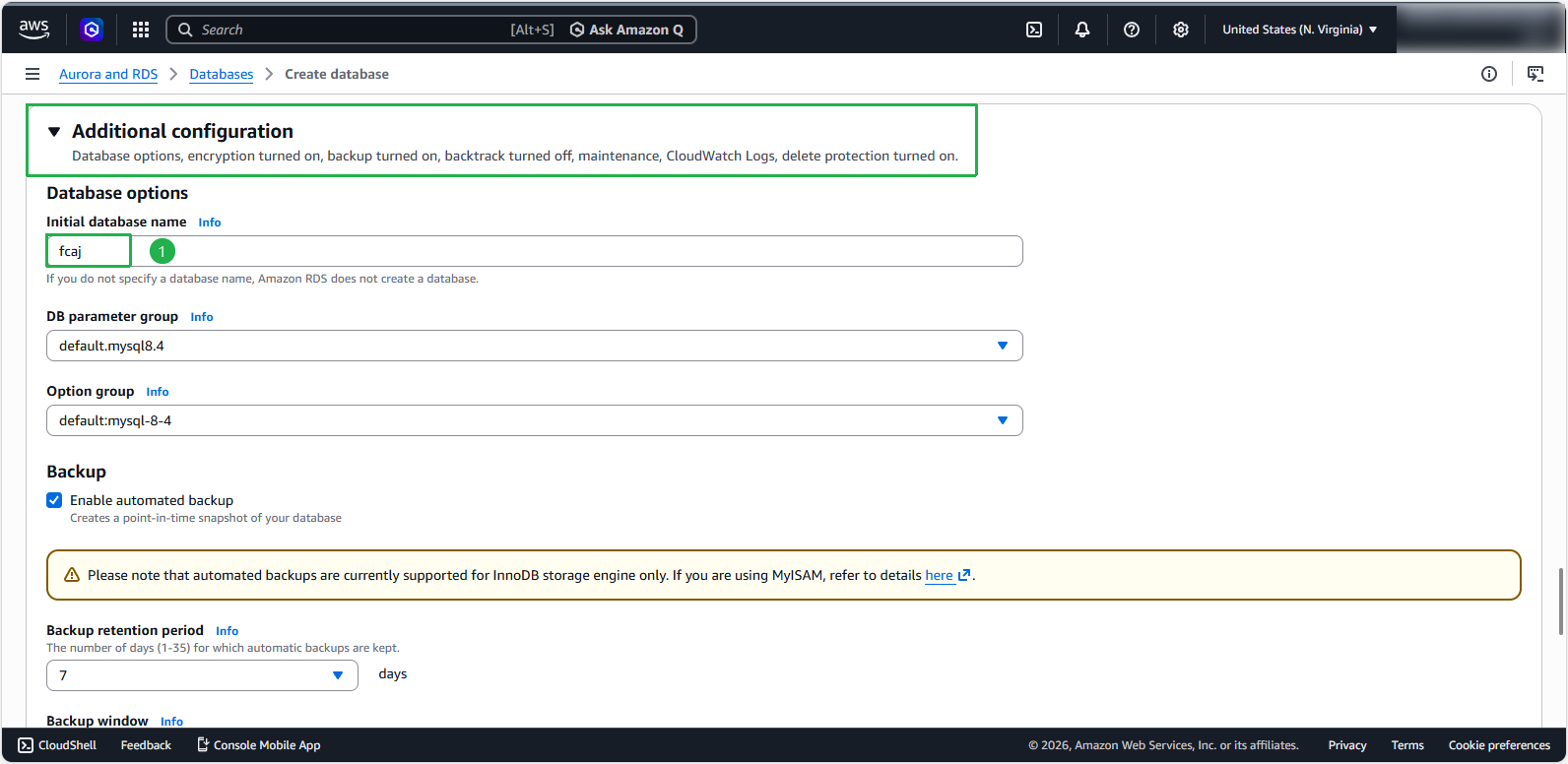
- Scroll down to Additional configuration section. Configure initial database settings:
- Set the initial database name to
fcaj - Leave other settings at their default values
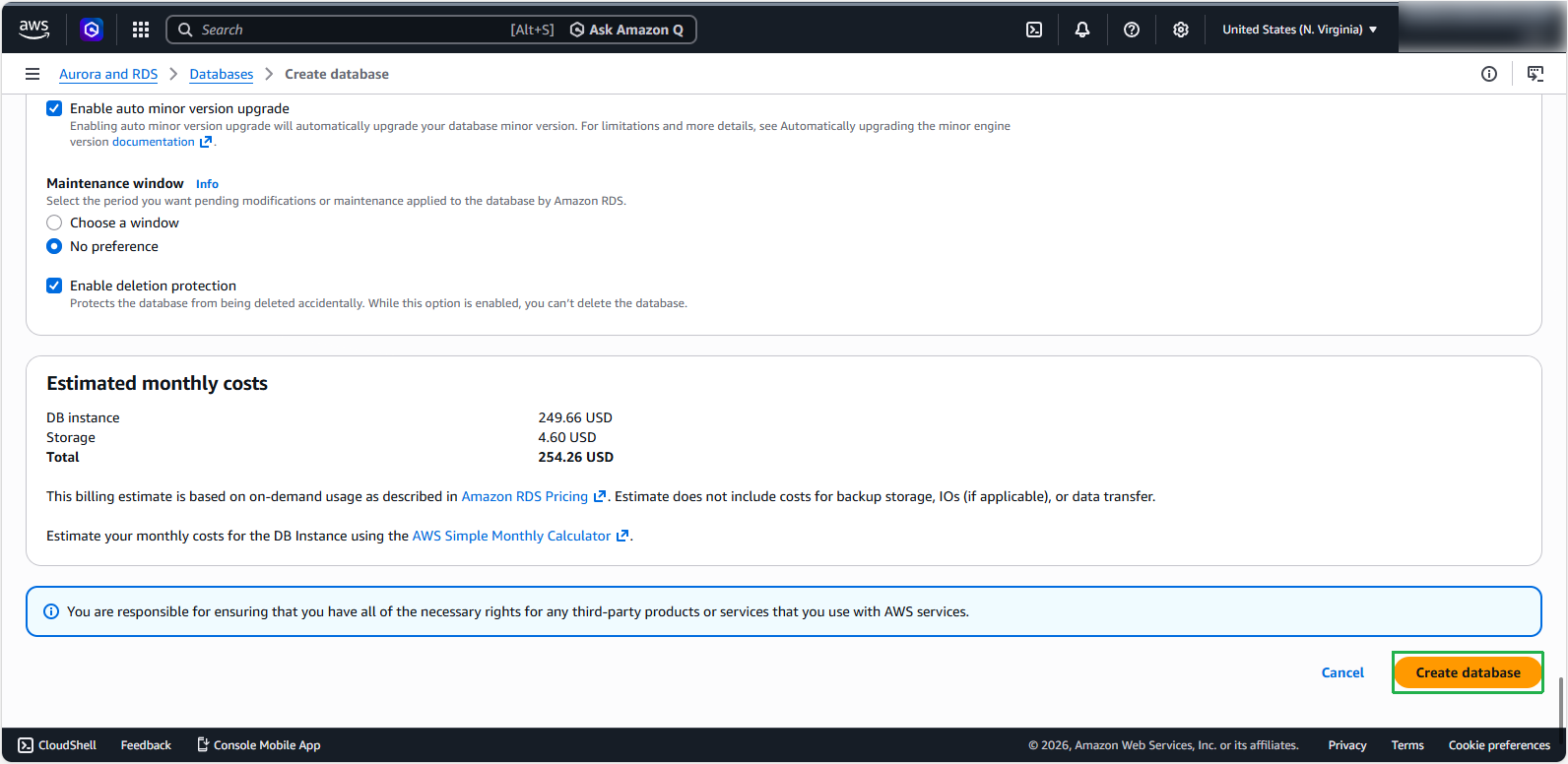
Complete the database creation. Click Create database
Verify successful database creation:
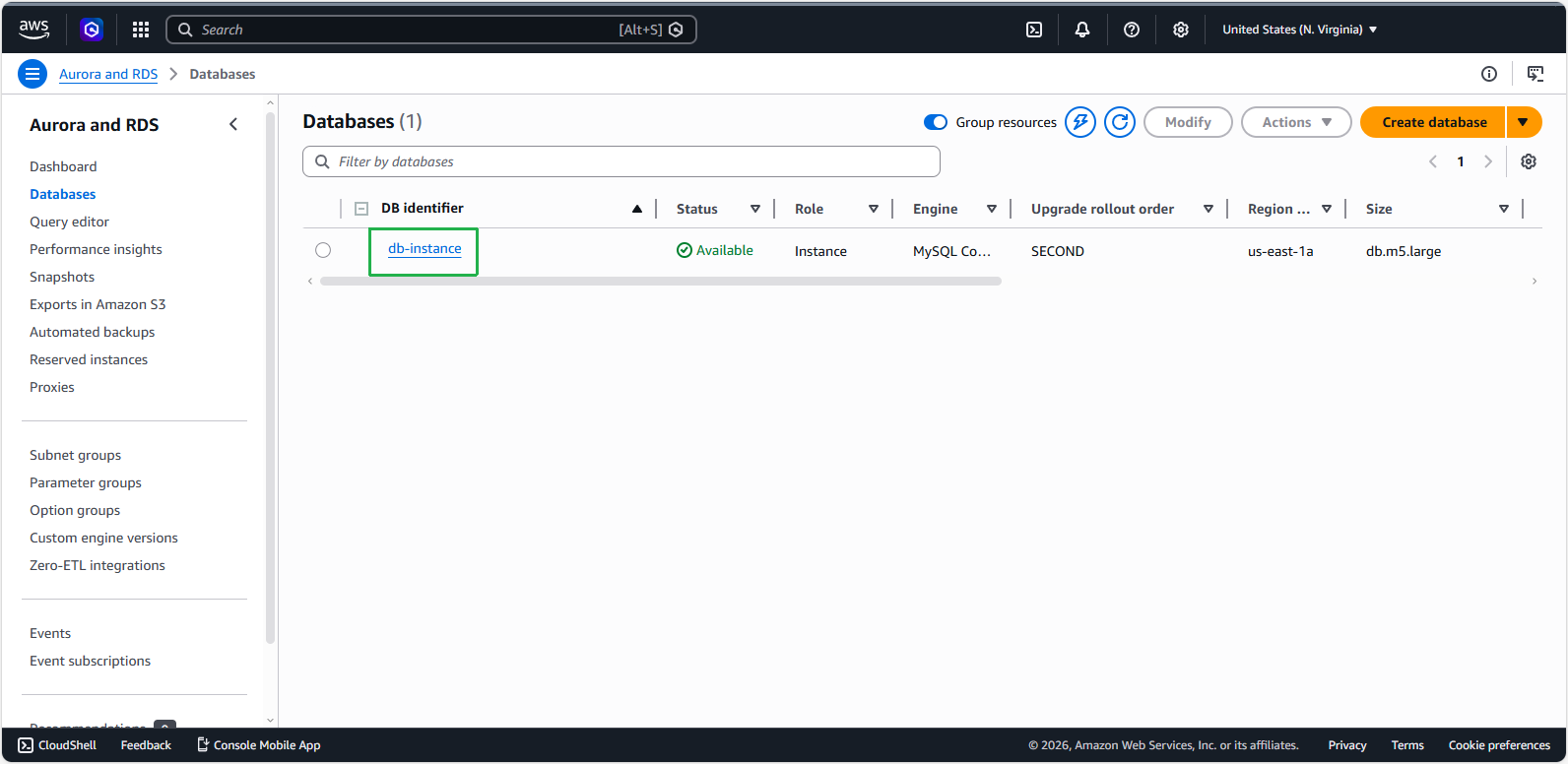
Check RDS
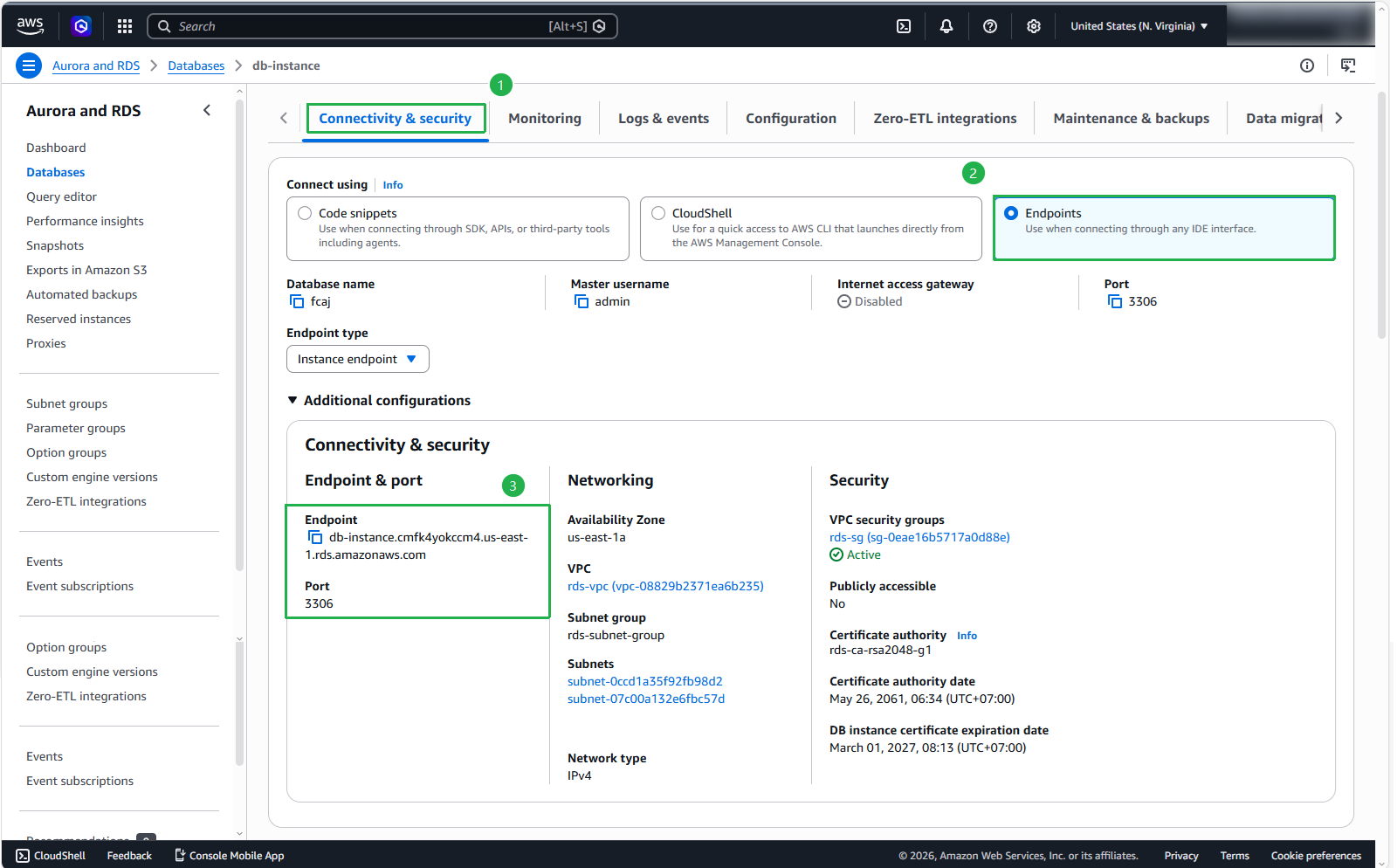
- In the Connectivity & security page of the RDS instance
- Choose Connect using: Endpoints
- You can find connection-related information such as Endpoint, Port. The Endpoint is the URL or IP address you use to connect to the RDS database.
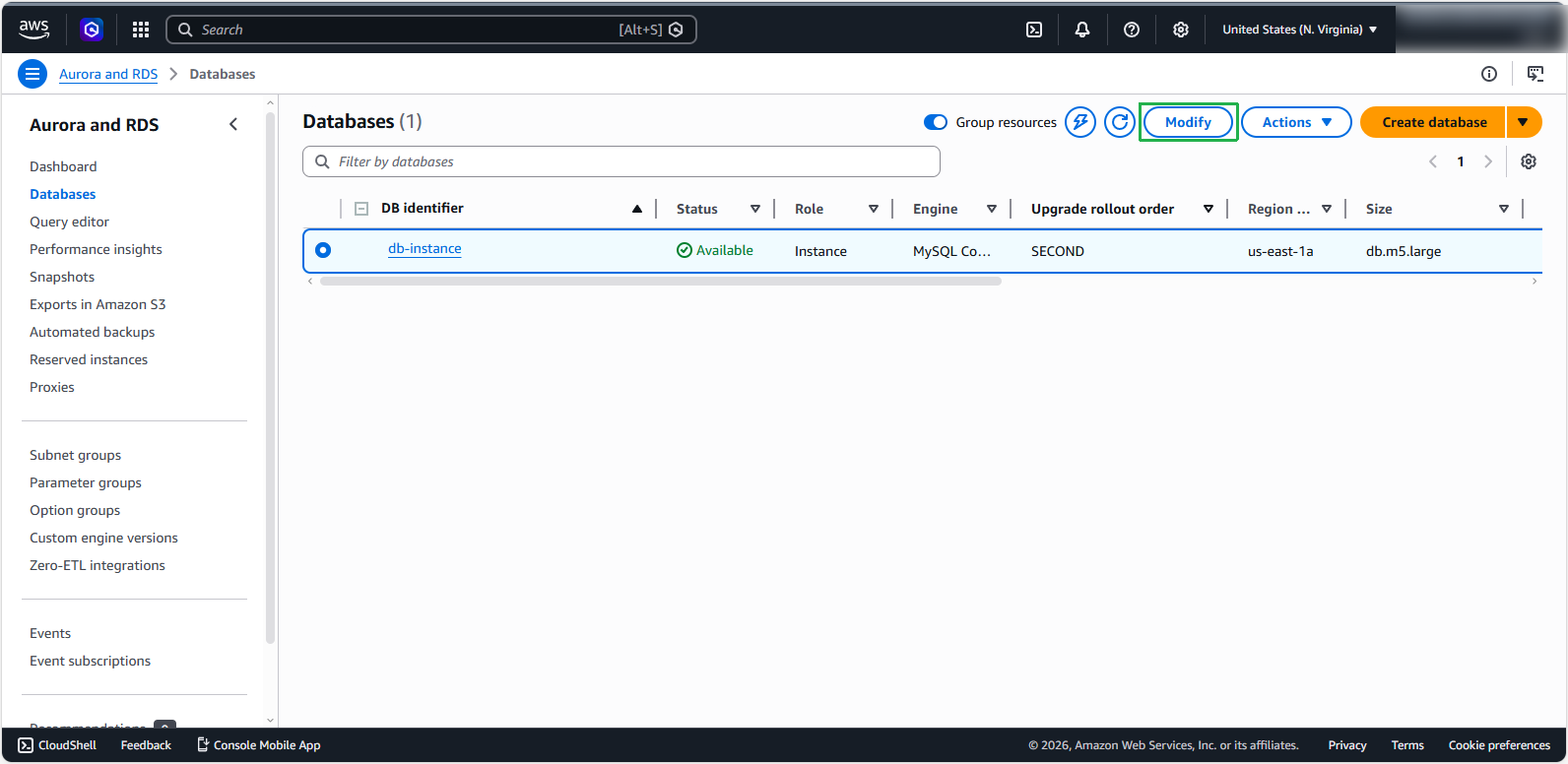
To edit the master username and password for the DB Instance, select Modify
Here you edit the master password in case you forget
Viewing Logs and Events on AWS RDS
- Select the RDS instance you want to view Logs and Events for.
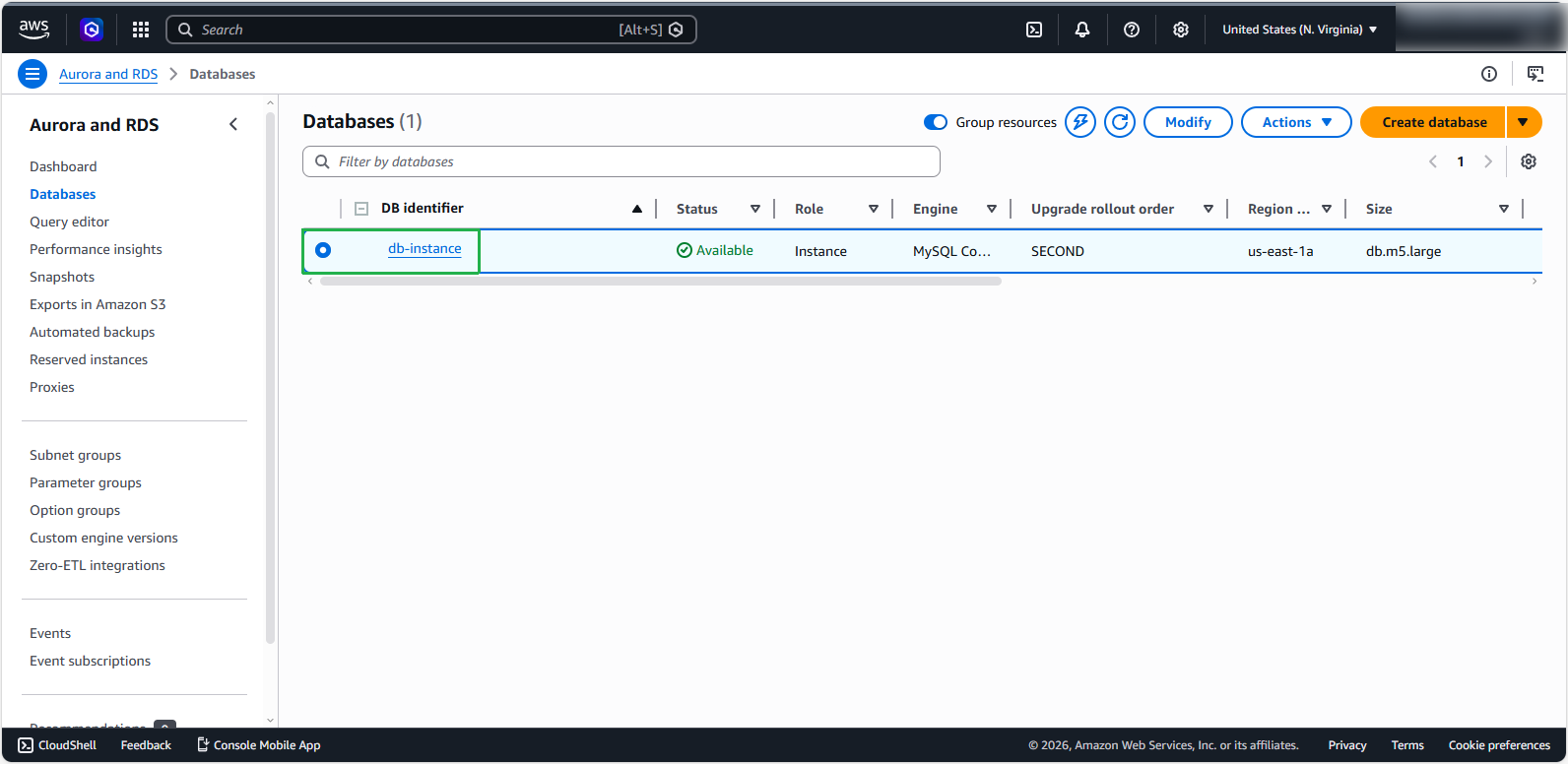
- In the instance details page, you will see the following tabs:
- DB instance details: Displays basic information about the instance.
- Configuration: Allows you to view and modify the instance’s configuration.
- Log & events: This is where you can view Logs and Events.
- Click on the Log & events tab.
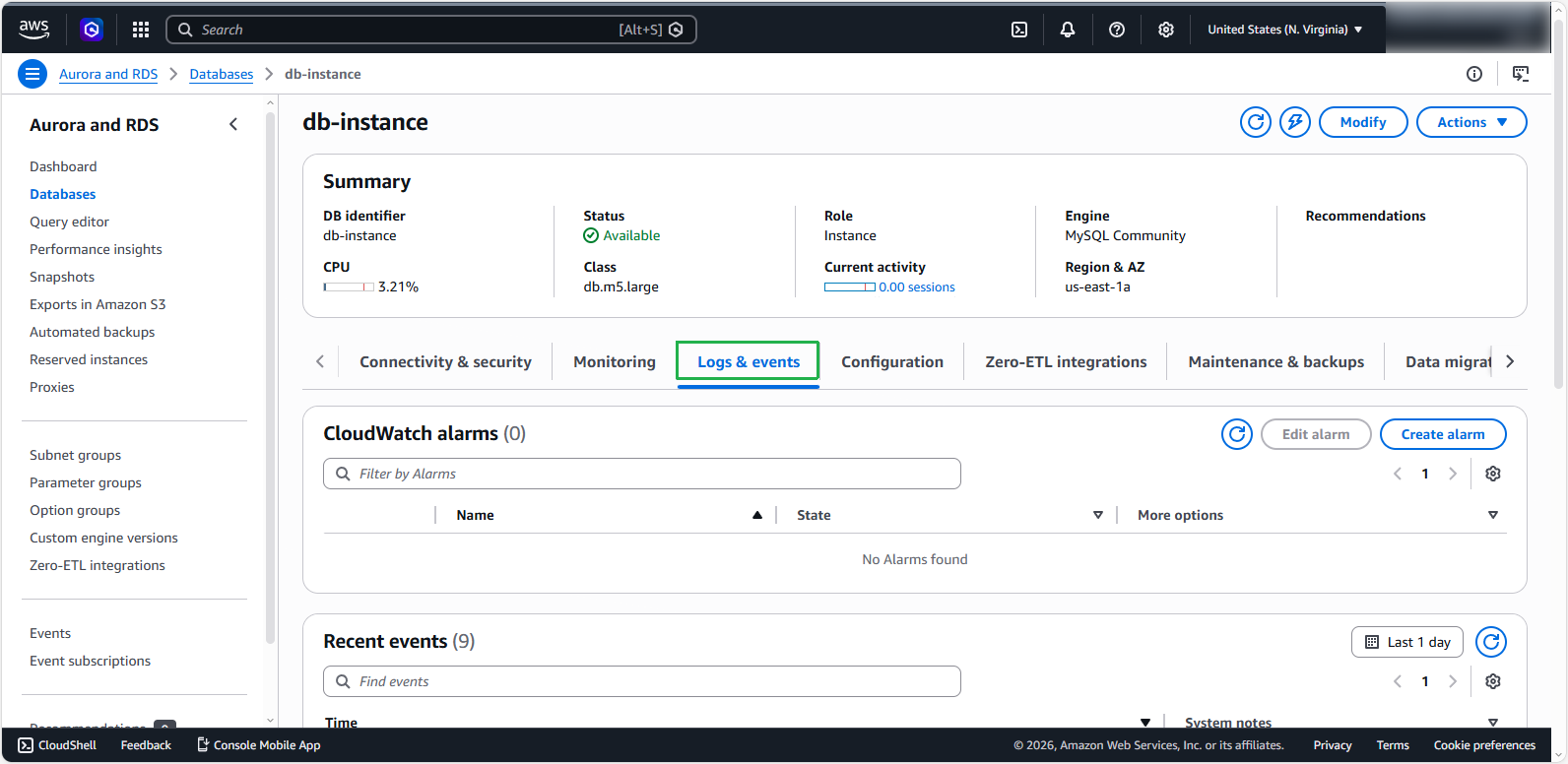
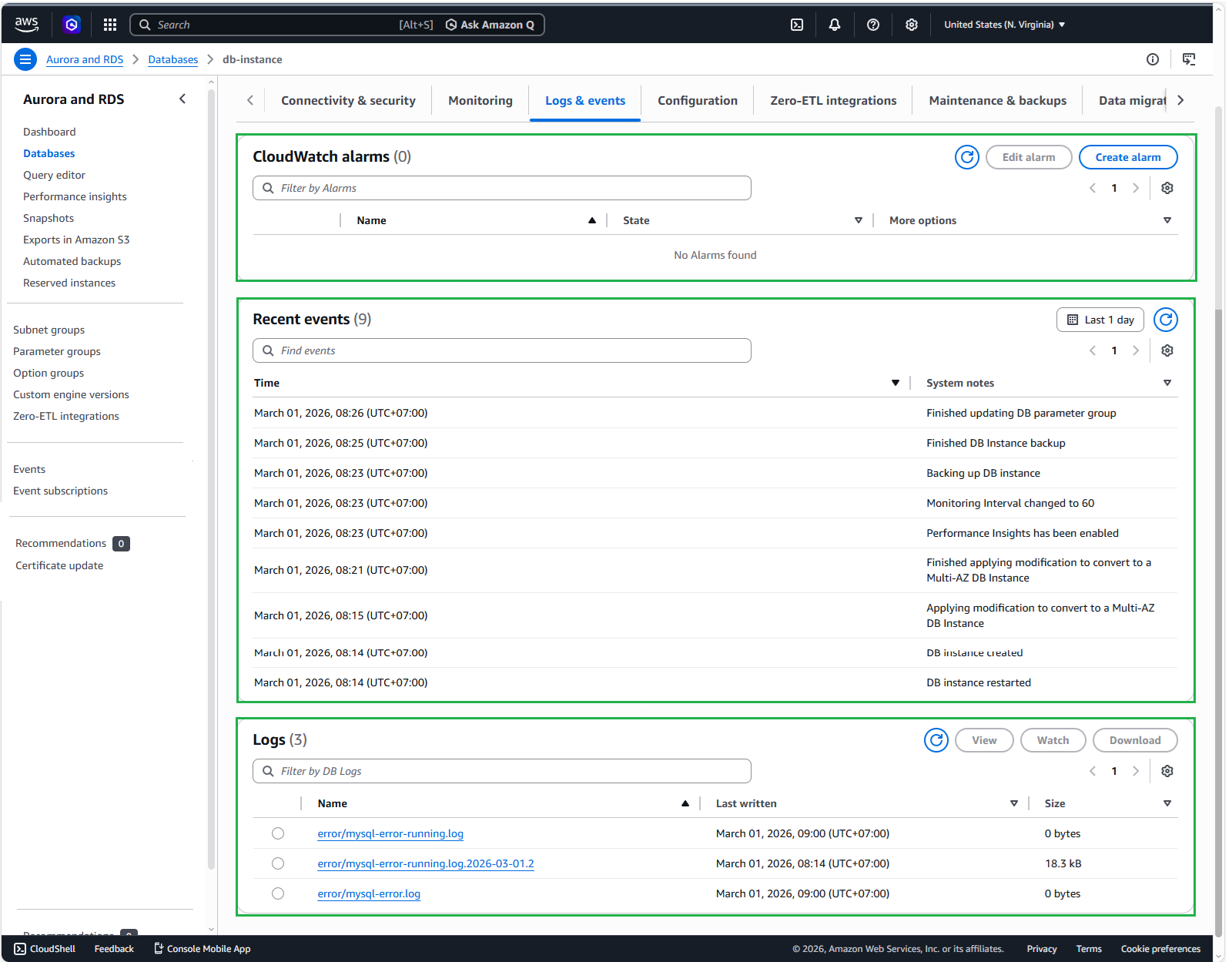
- Here, you can view logs such as:
- CloudWatch alarms: This is where the warning thresholds that have been set for the database are displayed.
- Recent events: A record of important actions or changes related to the DB Instance lifecycle in the most recent time (default is 24 hours).
- Logs: List of technical log files created during operations.
ℹ️ Important: We have just successfully initialized the RDS Database Instance so these logs do not appear yet.
Viewing Maintenance and Backup Information
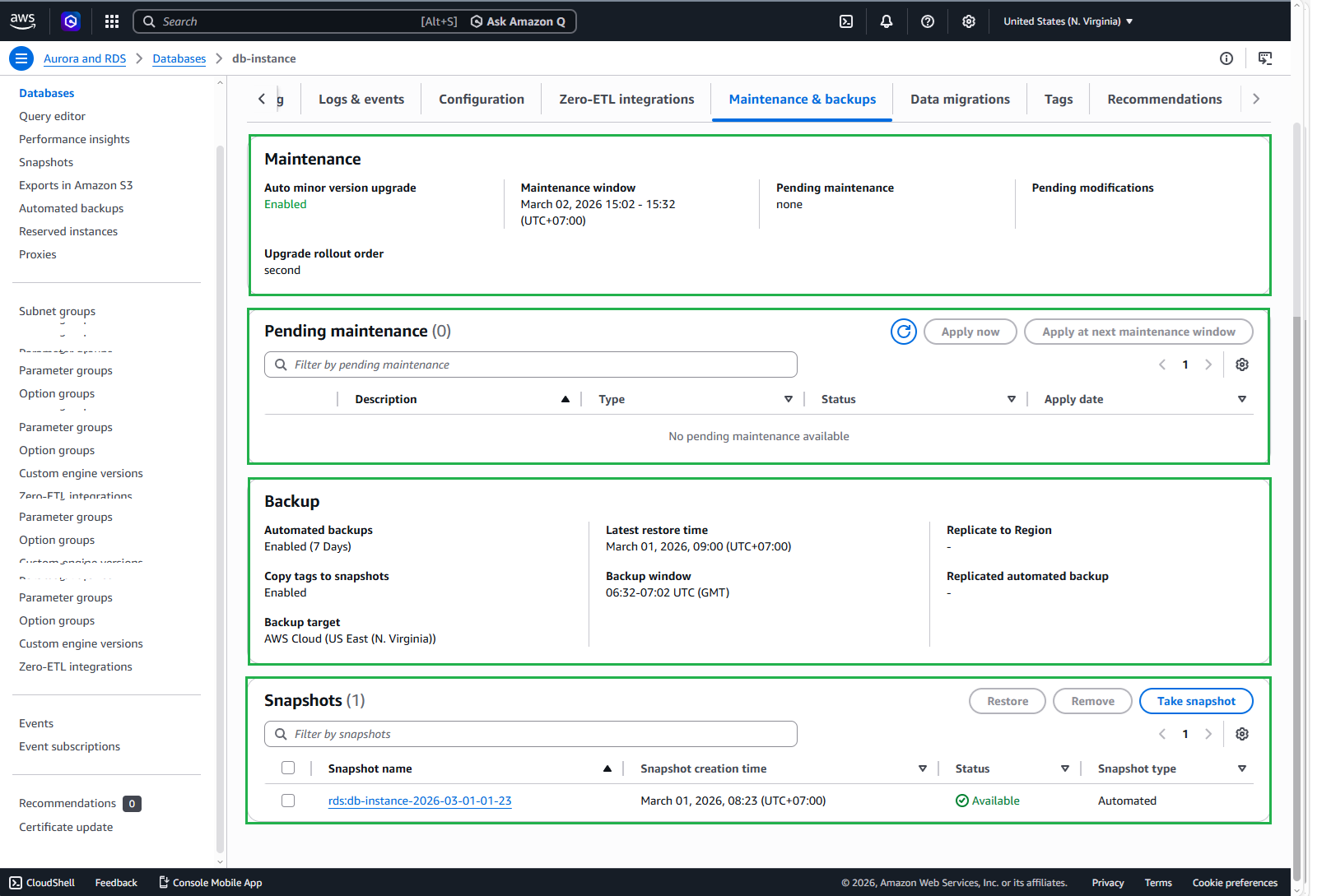
In Amazon Relational Database Service (RDS) provides an easy-to-manage relational database with automation for various tasks, including maintenance and backups. Here’s how you can view information about maintenance and backups in AWS RDS:
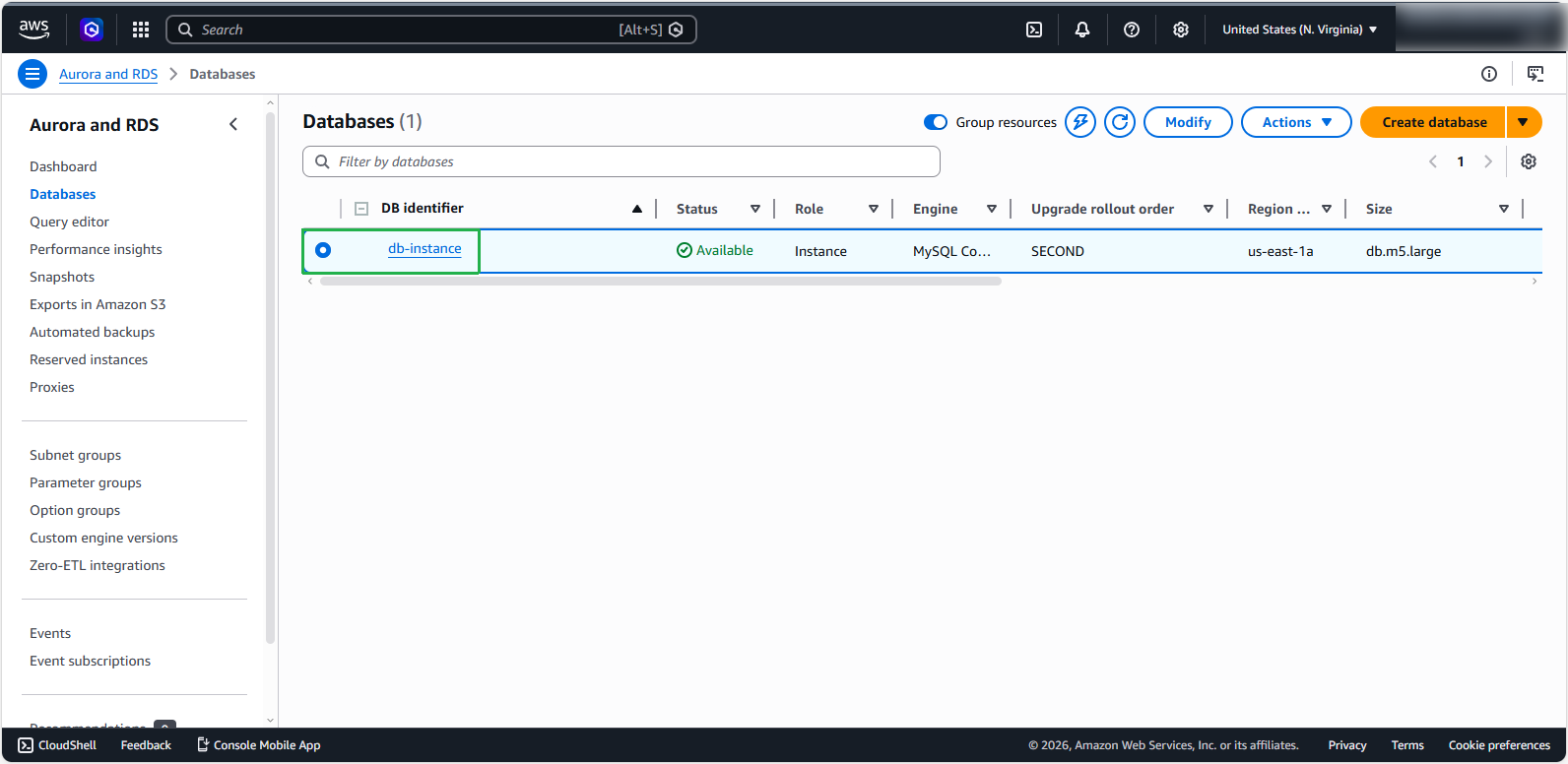
- In the RDS dashboard, select the DB instance you are interested in.
- In the DB instance management page, navigate to the Maintenance & backups tab.
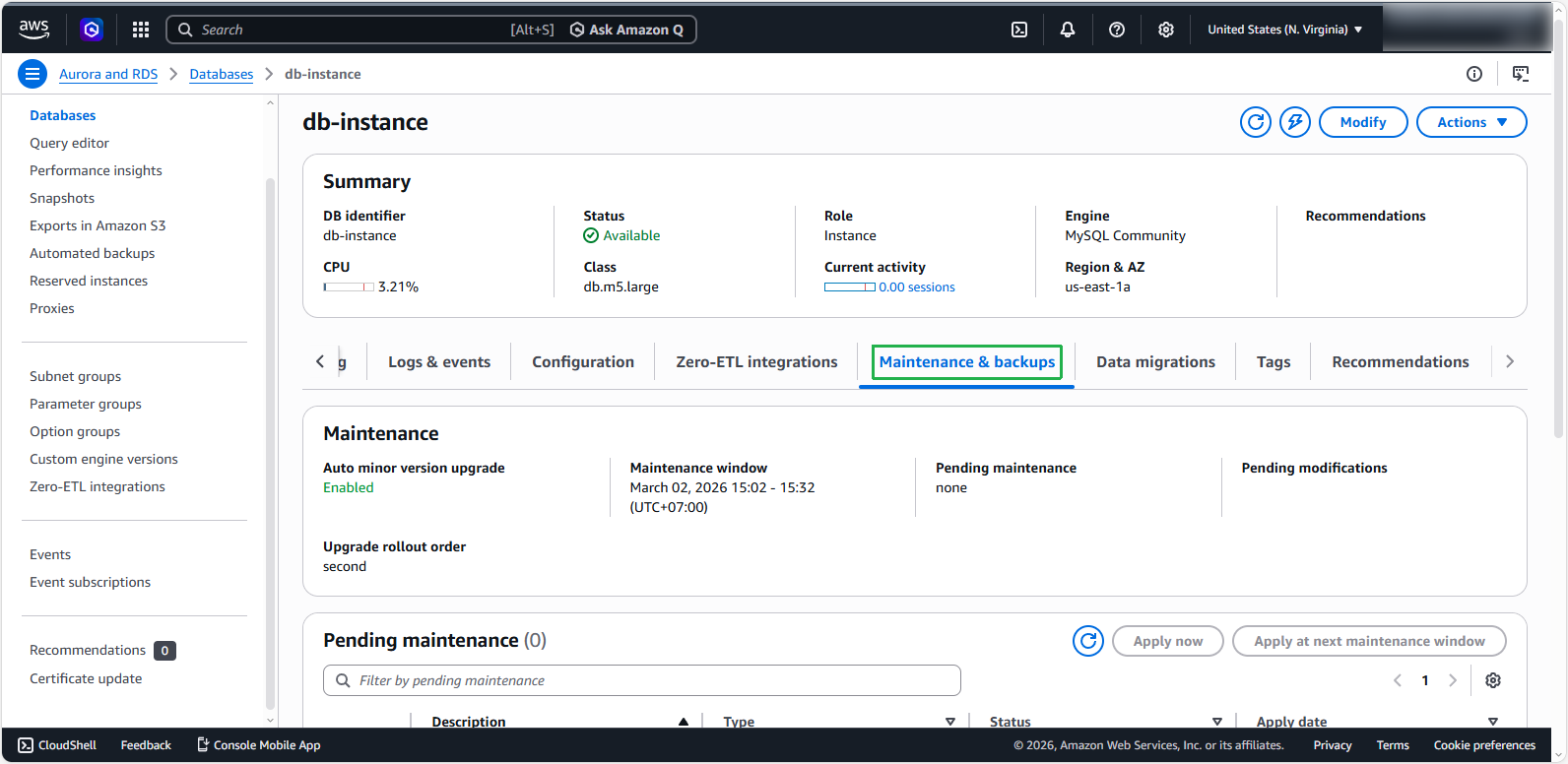
- Here, you will see information about the maintenance schedule
- Maintenance: You know when to expect security patches or automatic software upgrades from AWS.
- Pending maintenance: List of maintenance tasks or configuration changes that have not yet been applied.
- Backup: Indicates whether automatic backup mode is on or off, retention period, and latest restore time
- Snapshots: List of copies of all data at a given time.